How to use these prompts
Each prompt has the same parts: the facts, the task, the limits, and a request to list what the chatbot assumed. Square brackets are blanks. Fill them with facts you have checked, delete any line that doesn’t apply, and paste.
Under each prompt are two lines. Check is what to verify before the answer goes anywhere. Often wrong is the failure we would look for first. We wrote the prompts and read each one for sense, but we don’t show sample answers: an answer changes with the tool, the version and the day, and a sample on a page would look steadier than any of them are.
Two habits improve every prompt. Say what the chatbot must not do (“state no price”), because it fills a gap with something typical. And ask for its assumptions at the end, since that list is the fastest way to find the wrong guess.
Prompt 1, Reply when the date is open, taken apart
- Facts [Date] is open for [room name], [start time] to [end time]. The next step is a tour on [day and time].
- Task Write a reply to the inquiry below. Under 130 words, warm and plain, no exclamation marks.
- Limits Do not state any price, package, capacity or policy.
- Assumptions After the reply, list every statement in it that I should check.
- Check
- The date, room and hours against your calendar, the tour times against your diary, and that no figure has crept in.
- Often wrong
- Repeating the guest count as if the room fits it, adding “packages start at”, or calling the date available without naming a room.
What not to paste
Leave these out of any prompt:
- Card numbers, bank details, passwords and login links. No prompt here needs them.
- A client’s email address, phone number or home address. Use a first name or [client].
- Guest names beside medical or dietary needs. Use counts (“4 gluten-free”), not people.
- Anything you wouldn’t email to a stranger. If a rate sheet or contract is private, paste only the lines the task needs.
Then check the tool’s own data settings before you start: whether it keeps your chats, whether it uses them to improve its models, and whether a business or team plan changes either. Those settings differ by tool and plan and they change, so read the current ones instead of trusting this page. If your venue has a privacy policy, see what it tells clients about who handles their details.
Inquiry replies
This is the draft that matters most, because it states your date. The process around it is in how venues use AI to answer inquiries; these are the prompts.
1. Reply when the date is open
- Check
- The date, room and hours against your calendar, the tour times against your diary, and that no figure has crept in.
- Often wrong
- Repeating the guest count as if the room fits it, adding “packages start at”, or calling the date available without naming a room.
2. Reply when the date is taken
- Check
- That both alternates are open for that room and those hours, and that the list of dates it gives back matches what you supplied.
- Often wrong
- A third date you never offered, a line like “we’re nearly full this season” (a claim about demand), or a weekday that doesn’t match its date.
Proposals and follow-ups
A full proposal needs a prompt for each section, and AI event proposal: prompts and a template has them. These two cover the opening note and the chase.
3. Proposal cover note, with no prices
- Check
- That every detail traces to something you gave it, and that there isn’t a number anywhere.
- Often wrong
- Amenities you don’t have (“sweeping views”, “a dedicated coordinator”), an anchor price (“starting from”), or a line about holding the date.
4. Follow-up after silence
- Check
- That the useful thing is really attached or offered, and that any deadline is a real one.
- Often wrong
- Invented scarcity, such as “another couple is looking at your date”. Drafts reach for it when a follow-up has nothing to say.
Timelines and run of show
A chatbot orders segments well and knows none of your rules. Give it the rules, then check the sums.
5. Run of show
- Check
- That each start time follows from the row above it plus that row’s length, that the last row ends before the room-clear time, and what the asterisked lengths are.
- Often wrong
- Rows where the clock jumps with no reason, a schedule that runs past your end time, and no load-out row.
6. Wedding day timeline, counted back from the ceremony
- Check
- Each row against the venue rules you gave it, and the times against each other.
- Often wrong
- A rule it was given and then ignored, hair and makeup times it made up instead of asking, or photos placed on top of the cocktail hour.
7. Load-in and load-out schedule
- Check
- That no two windows overlap at the same door, and each access detail against the building as it really is.
- Often wrong
- Overlapping slots, or details you never gave it: a freight elevator, a second parking lot, outlets that aren’t there.
For the whole day, vendors included, the free run of show template chains each start time from the length of the segment above it.
Vendor and day-of messages
Short messages with exact times are where a typo does the most damage and a chatbot does the least good. Use it for the wording and read every digit yourself.
8. Vendor logistics email
- Check
- Every time, name and phone number, character by character, against your own notes.
- Often wrong
- A transposed digit, or “as per our agreement” followed by terms you never agreed.
9. Day-of change
- Check
- The new time and place, and who the change touches. Send it yourself.
- Often wrong
- A promise you didn’t make, leaving out what stays the same so everyone phones to ask, or calling the change final before it is.
10. Staff briefing
- Check
- Times and dietary counts against the event sheet.
- Often wrong
- Positions for staff that you never set, a rounded count, or two dietary needs merged into one.
Menus and counts
Words are safe here. Quantities aren’t, and allergens are the kitchen’s job whatever a draft says.
11. Menu descriptions
- Check
- Every ingredient and allergen against the kitchen’s own recipe cards.
- Often wrong
- A garnish or sauce added for flavour, or an allergen dropped. Never use a chatbot draft as the source for allergen information.
12. Dinner options that fit your kitchen
- Check
- Each dish against what your kitchen can really turn out on the night, and the cost against your own supplier prices.
- Often wrong
- A dish that needs a fryer or a second oven you don’t have, an ingredient out of season, or a dietary need left uncovered.
13. Check my meal counts
- Check
- Add the table yourself. Then ask whether anyone sits in two groups.
- Often wrong
- A buffer it adds on its own (“plus 10 percent”), rounding, or a guest who is vegetarian and gluten-free counted twice.
After the event
14. Thank-you to the client
- Check
- The names, the date and the link.
- Often wrong
- A compliment about the day that nobody gave it, such as “the dance floor was packed”. It writes what thank-yous usually say.
15. Summarise survey comments
- Check
- Count a sample by hand, and match every quote to an original comment.
- Often wrong
- Miscounts, two themes merged into one, and “quotes” that have been tidied.
The same failures, in every prompt
Across all fifteen, the mistakes come from a short list.
| Failure | What it looks like | What to do |
|---|---|---|
| Invented prices | A rate, “packages from”, or a deposit you never gave it. | Write “state no price” in the prompt. Type every number into the final draft yourself. |
| Wrong dates and times | A weekday that doesn’t match its date, or times that don’t follow each other. | Check each against a calendar. Ask for a table and add the lengths. |
| Counts that don’t add up | Groups that sum to something other than the guest count, or a buffer nobody asked for. | Add them yourself, and say “no rounding, no buffer”. |
| Confident capacity | “The room comfortably seats 150” for a room it has never seen. | Use your own number, set by the layout and your local fire authority. |
| Invented extras | Amenities, vendors or policies you don’t have. | Say “add nothing”. Read for any word you can’t point to in your own notes. |
Let a calculator do the numbers
When the answer is a number, a calculator returns the same result every time and shows its working. These cover the places where the prompts above tell you to check the arithmetic.
- The free catering food calculator for how much food to buy per guest.
- The free ice calculator for pounds of ice and bags by size.
- The free venue capacity calculator for how many guests a room holds by setup, next to the code count.
- The free wedding timeline template and the free run of show template for times that chain correctly.
- The free event proposal template for line totals, service charge, tax and the deposit.
For the wider question of where AI helps in event work and where it doesn’t, see AI for event planning.
When you do this many times a week
Pasting facts into a chatbot works for one email. A venue that answers inquiries every day pastes the same rates and room details again and again, and the chatbot still can’t see the calendar. The assistant inside MyVenueHQ writes a reply from the inquiry itself: it checks your calendar for the date, words the reply, and leaves prices, capacity and policies for you to confirm. MyVenueHQ doesn’t send it. You edit the draft, then open it in your own email app or copy it.
It works in the web app and writes in English, and every plan has a monthly allowance of assistant actions, with a small one on the Free plan. The limits and what it does are on AI venue management software.
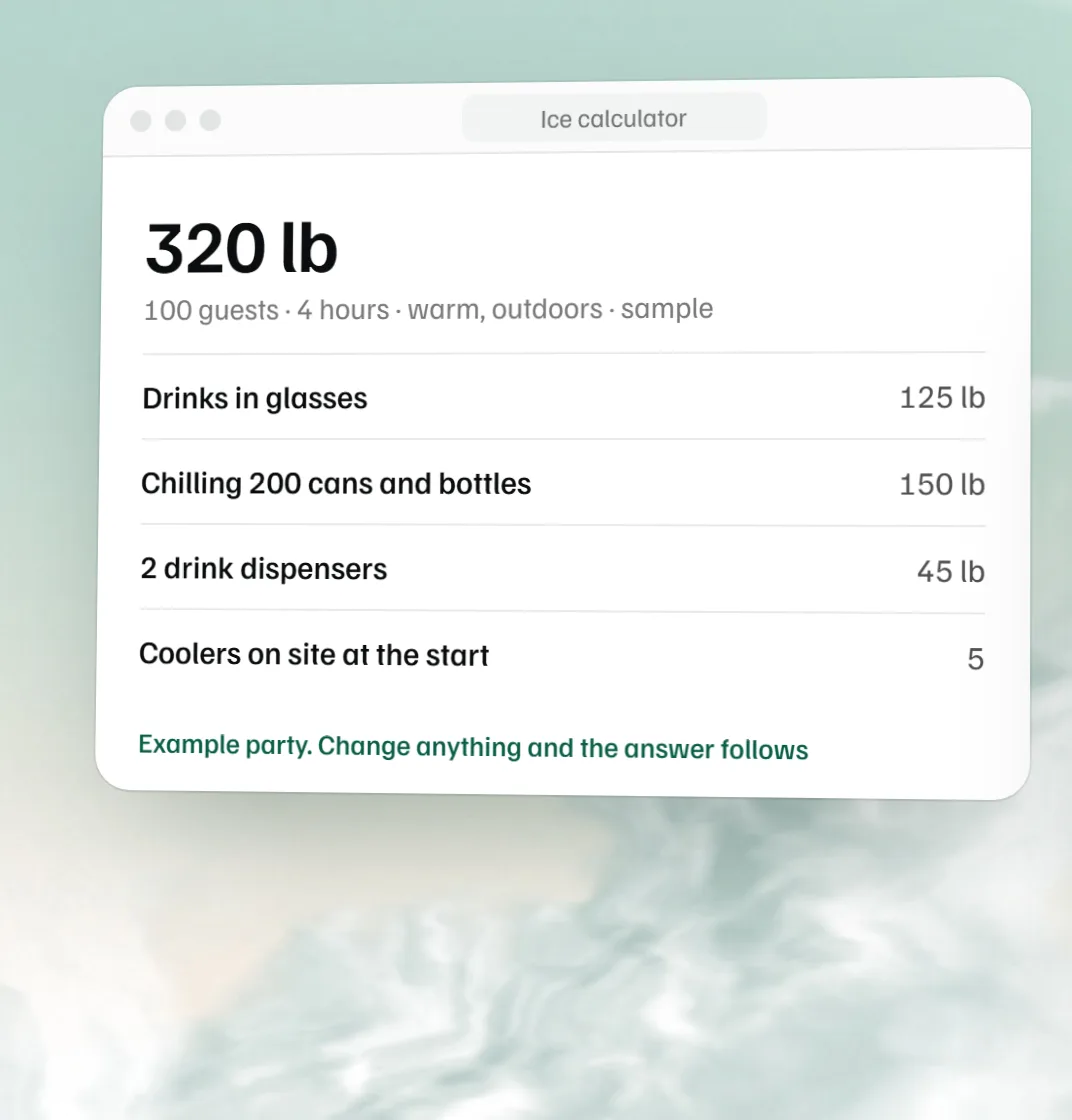 Free ice calculator
 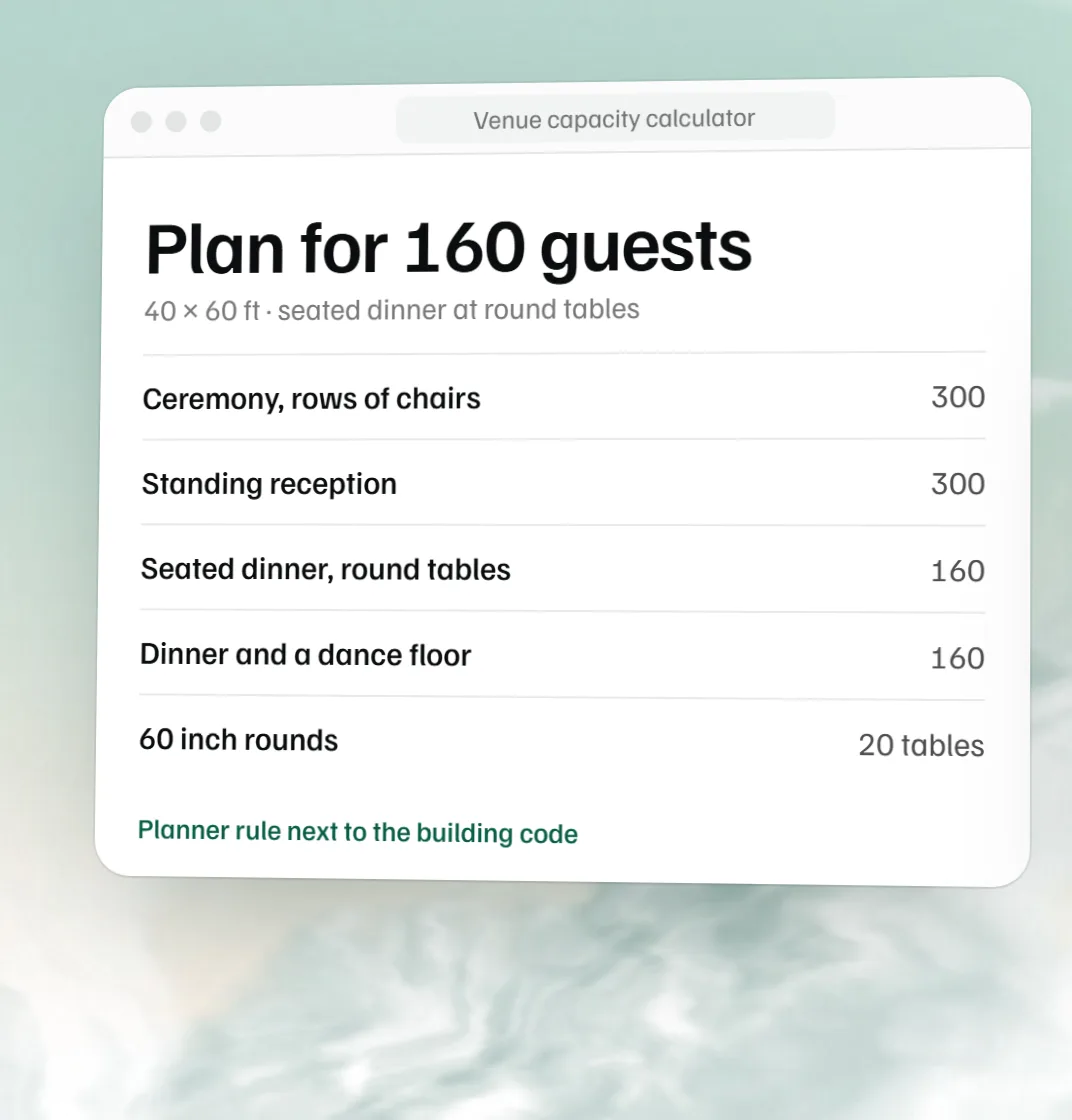 Free venue capacity calculator
 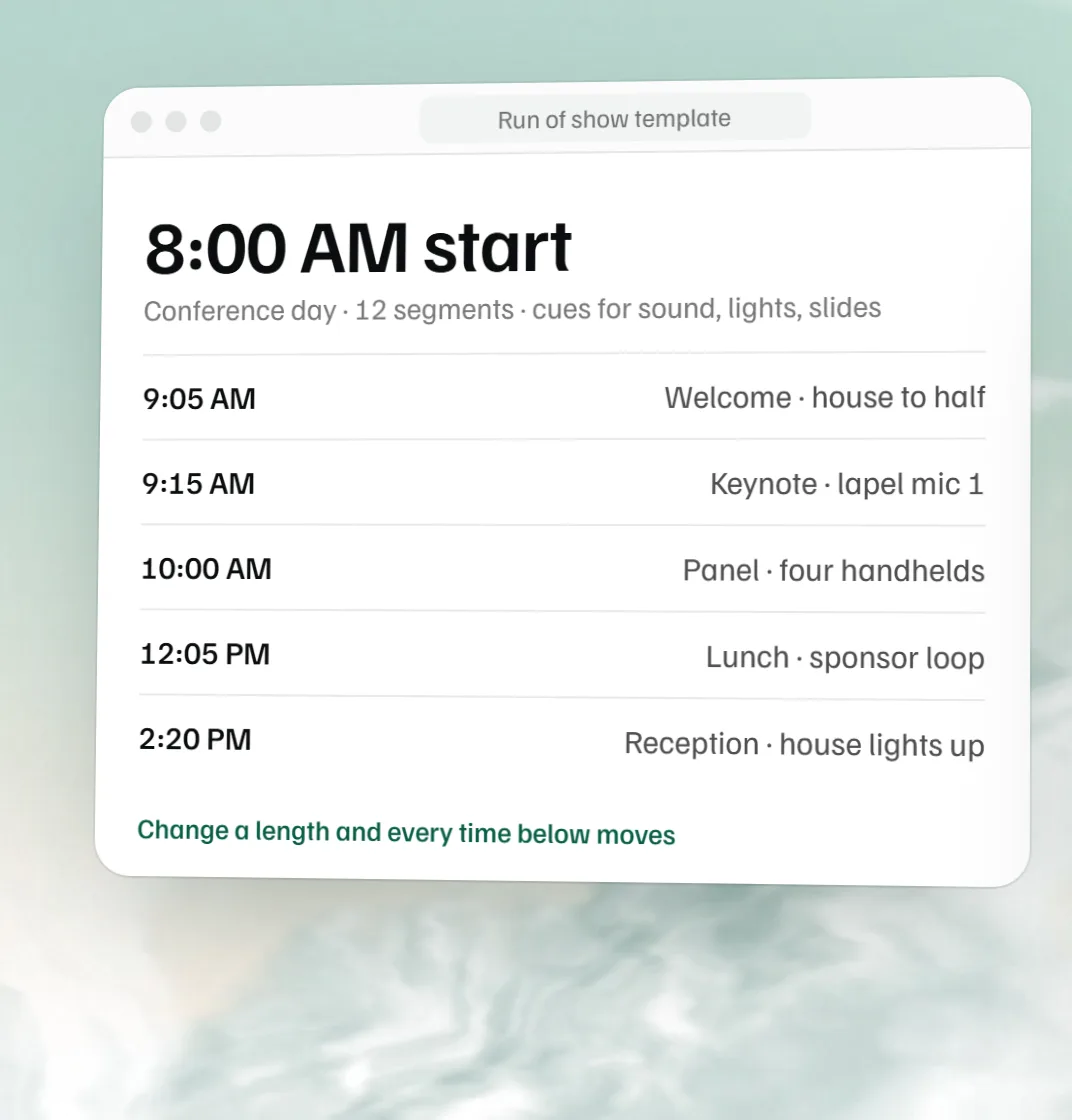 Free run of show template
 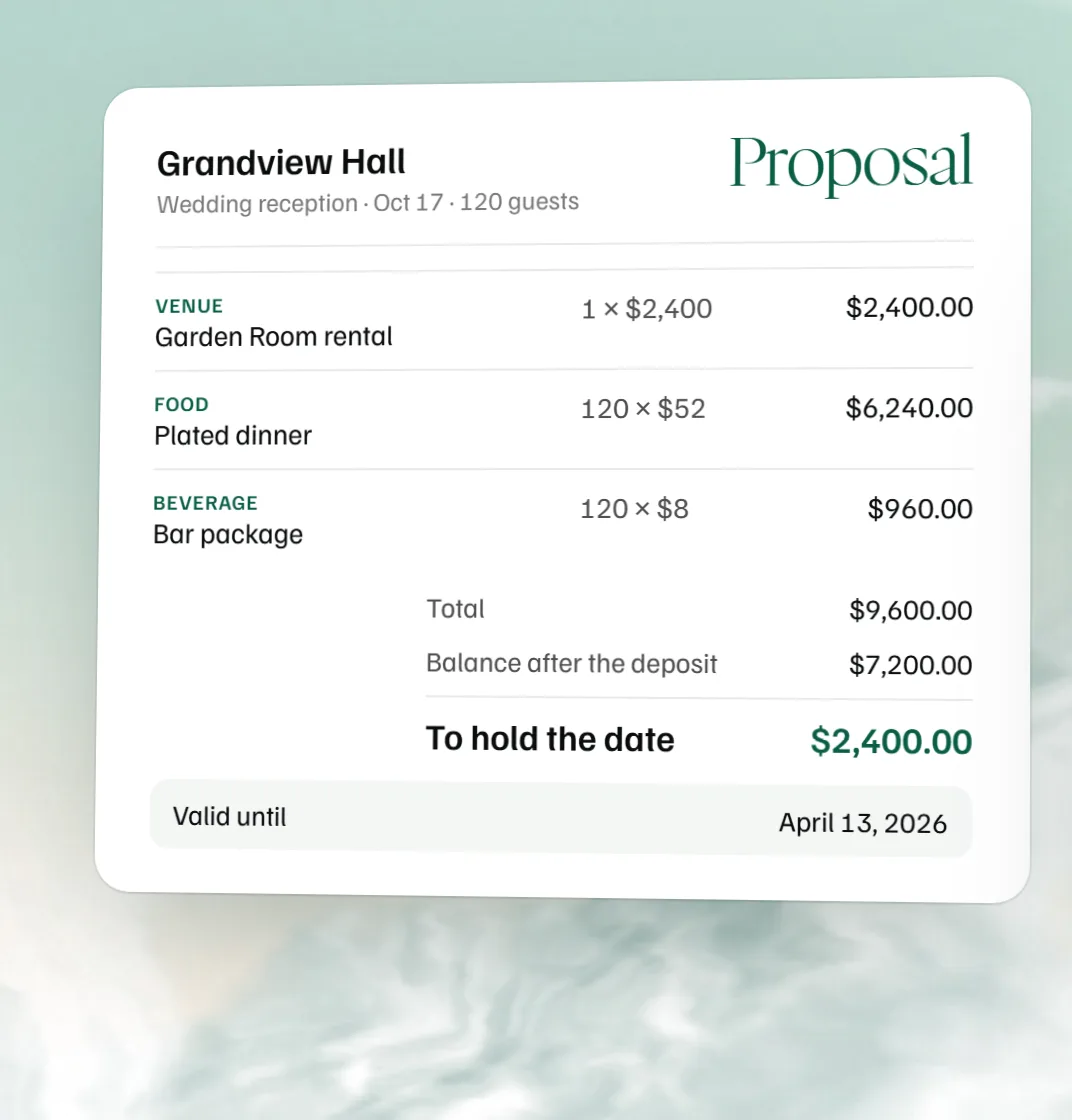 Free event proposal template